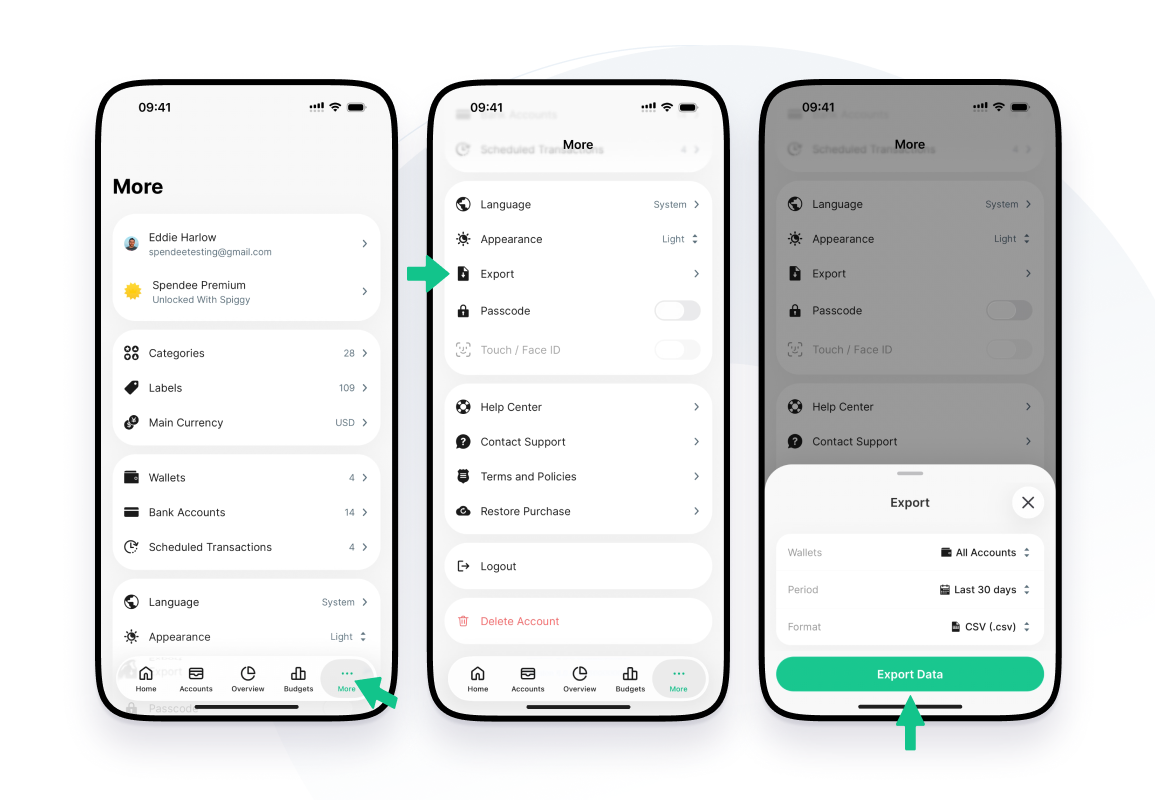








































You can export your transactions from the Spendee mobile app, for example to keep a backup or work with them in a spreadsheet.
How to export
- Open Spendee and go to More.
- Tap Export.
- In Wallets, choose All Accounts or pick the wallets you want.
- In Period, choose Last 30 days, Last 90 days, Last 365 days, All History or Custom Period.
- In Format, choose CSV (.csv) or Excel (.xlsx).
- Tap Export Data.
The file arrives in your email within a few minutes. You need to be online to export.
What the Free plan includes
On the Free plan you can export CSV files for the last 30, 90 or 365 days. Excel (.xlsx), All History and Custom Period are marked Premium and need a paid plan. If you tap one of them on the Free plan, Spendee shows the available plans.