









































A hidden account stays in Spendee with all its transactions, but it no longer counts in your overview. You can show it again at any time.
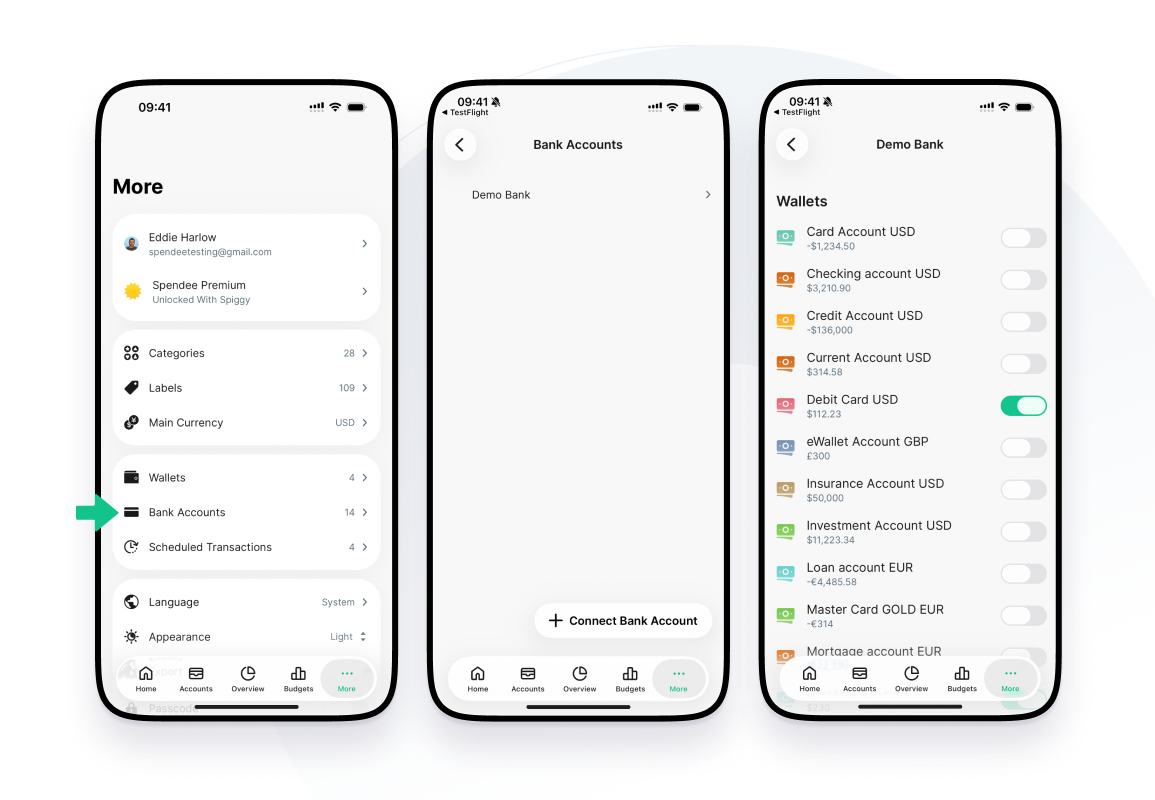
Hide a bank account
- Go to More and tap Bank Accounts.
- Tap your bank.
- Turn off the switch next to the account you want to hide.
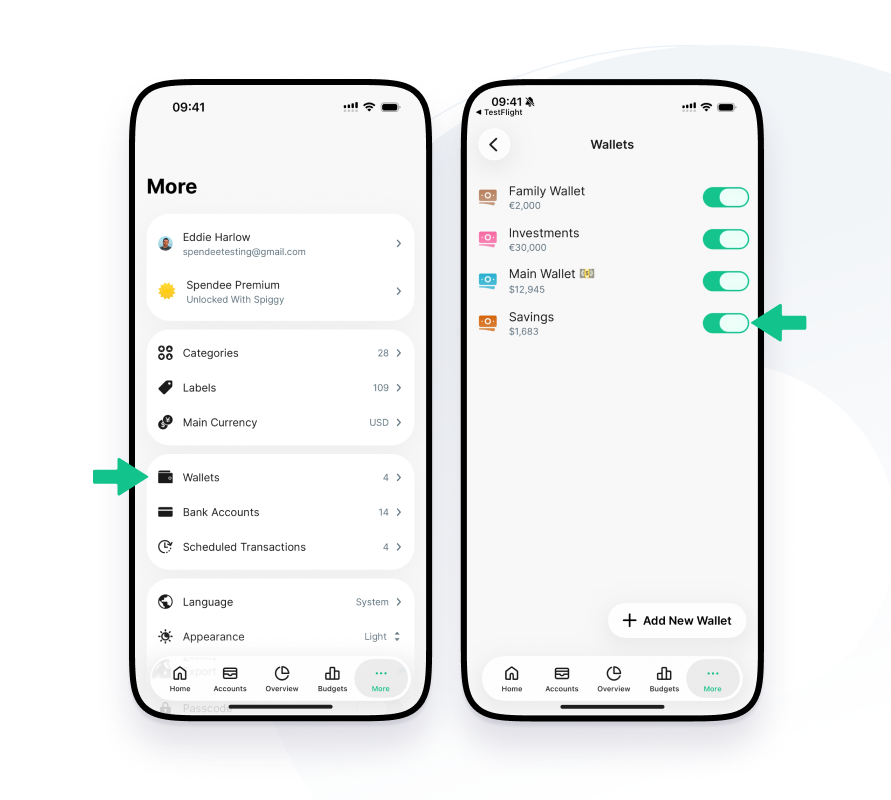
Hide a wallet
- Go to More and tap Wallets.
- Turn off the switch next to the wallet you want to hide.
Hide it from the Accounts tab
- Open the Accounts tab.
- Touch and hold the account or wallet.
- Tap Exclude from Overview.
You can also open the account, tap the ⋯ button, choose Edit wallet, turn on Archive and save with the check mark.
Find a hidden account
Hidden accounts are listed in the Accounts tab under Excluded. Tap Excluded to open the list.
To show an account again, turn its switch back on, or touch and hold it and tap Include in Overview.