









































Scan receipt is Spendee’s AI receipt scanner. You take a photo of a receipt, and Spendee fills in the transaction for you.
Scan receipt is part of Spendee Premium and Lifetime Premium.

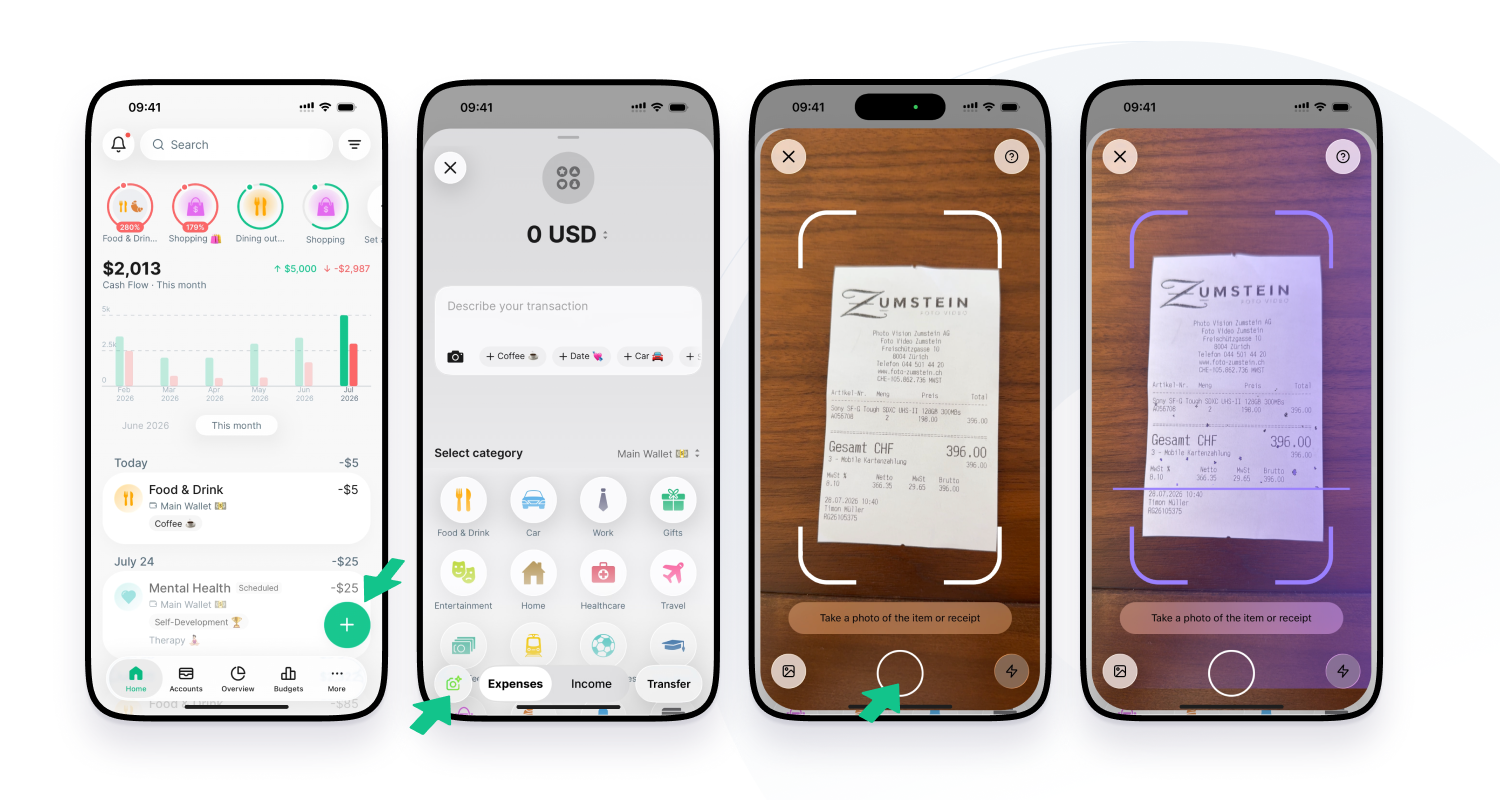
How to scan a receipt
- Tap the green + button to add a transaction.
- Tap the camera button at the bottom left, next to Expenses and Income.
- Point the camera at the receipt and take a photo. You can also pick a photo from your gallery.
- Check the filled-in transaction and save it.
Tip: press and hold the green + button and choose Scan receipt to open the camera straight away.
What Spendee fills in
From the receipt, Spendee reads:
- the total amount and its currency
- the date
- the shop name, as the note
- the category and labels
The photo is attached to the transaction. You can change anything before you save.