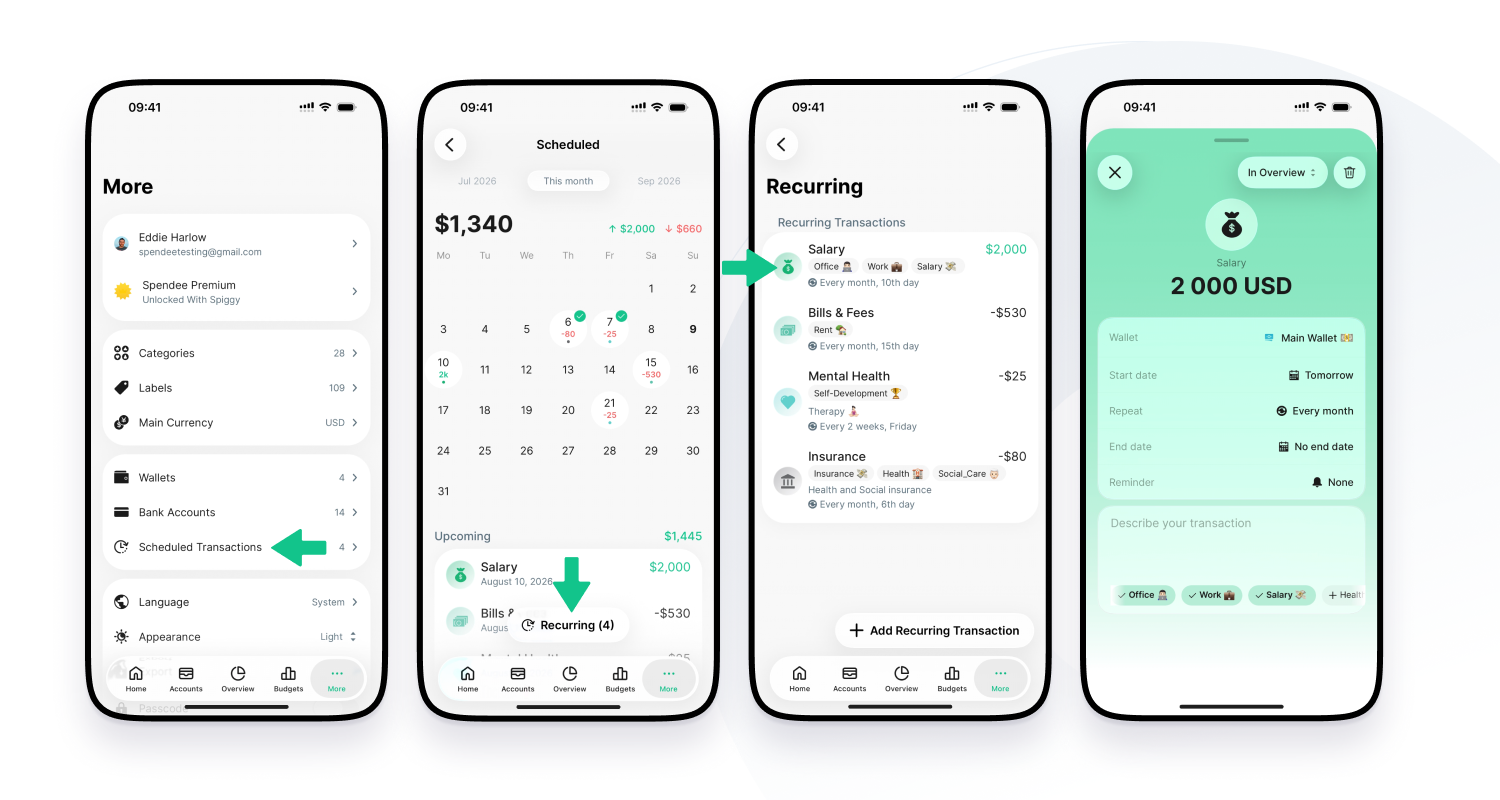








































Do you have an expense you pay regularly, like rent, an internet bill, or insurance? Add the transaction to Spendee and set up a recurring rule. In the More section, you can also view all your Recurring Transaction templates, sorted by date, as well as your Future Transactions.
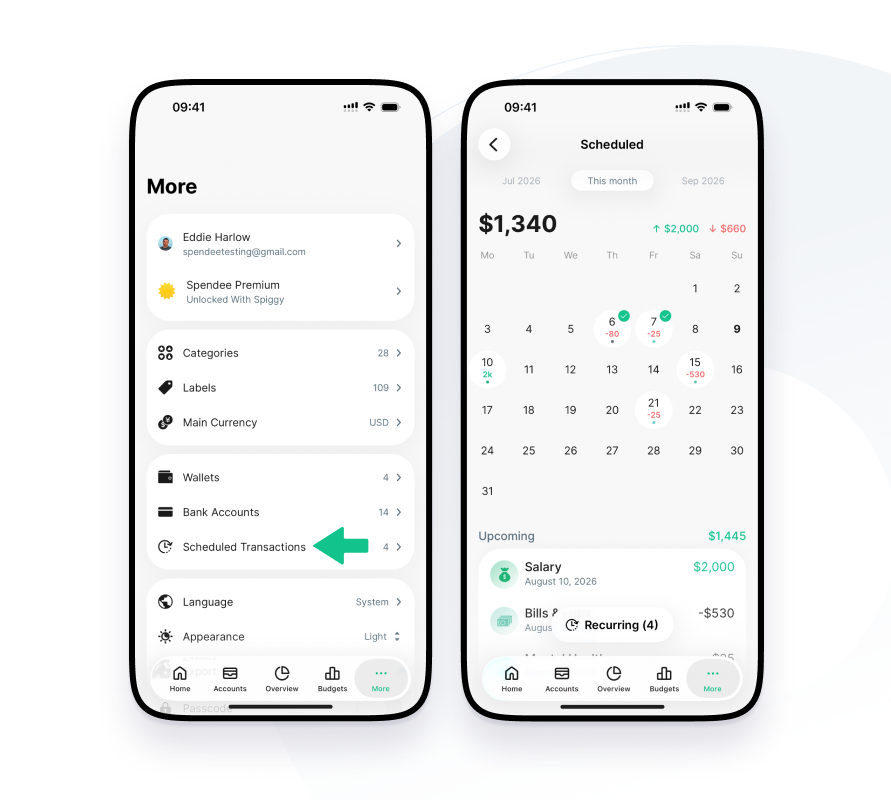
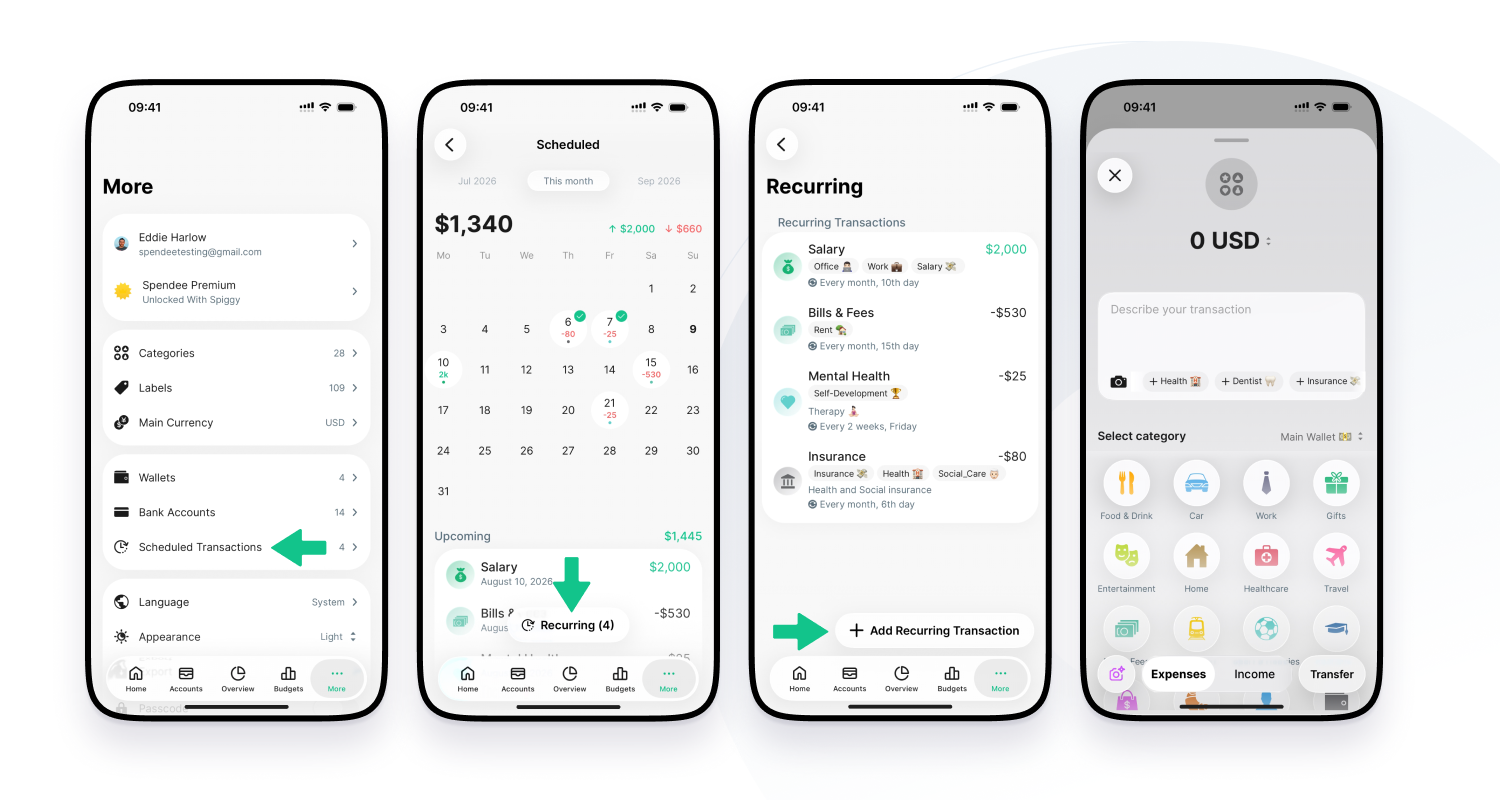
How to create a new scheduled transaction template
- Open your app
- Go to More
- Scheduled Transactions
- Tap on Recurring
- Tap on + Add Recurring Transaction
There are 3 ways to edit or delete scheduled transactions
- Go to More → Scheduled Transactions → Select the transaction → Edit/Delete
- Open a Wallet → Scheduled section → Select the transaction → Edit/Delete
- From the Home screen → Scheduled section → Select the transaction → Edit/Delete
Note: The second and third options are available only when viewing a Month/Year or Custom period.
We’ve also added a One-Time Transaction section for all your future non-recurring transactions, so you can plan upcoming expenses and budgets in advance.
Recurring Transactions are currently available only for Manual (Cash) Wallets.