









































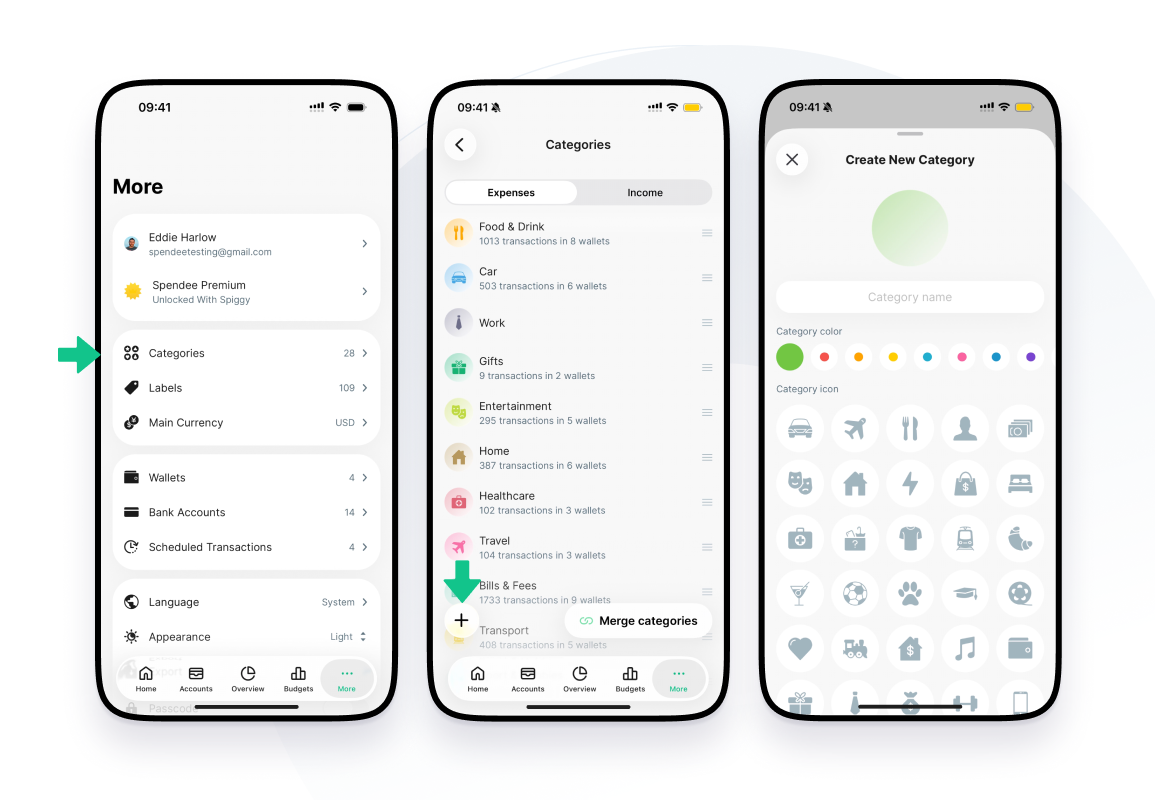
You can create your own categories and choose their name, color and icon.
Create a category in More
- Open the More tab.
- Tap Categories.
- Choose Expenses or Income at the top.
- Tap + in the bottom left corner.
- Enter the Category name.
- Pick a Category color and a Category icon.
- Tap the check mark in the top right corner to save.
Create a category while adding a transaction
You can also create a category from a transaction. Open a transaction, tap its category at the top, and choose Create Category at the end of the list. The new category gets the same type as the list, expense or income, and is picked for the transaction.
Edit, merge or delete a category
- To edit a category, tap it in More > Categories, change what you need and save.
- To delete it, open the category and tap Delete category. Spendee asks whether to delete its transactions or move them to another category.
- To combine categories, tap Merge categories, select the categories and confirm.
To change the category of a single transaction, see How to change the category of a transaction.